Hardware requirement:
.....................
Requirement Standard Edition Enterprise Edition Datacenter Edition Web Edition
Minimum CPU Speed 133 MHz 133 MHz for x86-based computers
733 MHz for Itanium-based computers
400 MHz for x86-based computers
733 MHz for Itanium-based computers
133 MHz
Recommended CPU Speed 550 MHz 733 MHz 733 MHz 550 MHz
Minimum RAM 128 MB 128 MB 512 MB 128 MB
Recommended Minimum RAM 256 MB 256 MB 1 GB 256 MB
Maximum RAM 4 GB 32 GB for x86-based computers
512 GB for Itanium-based computers
64 GB for x86-based computers
512 GB for Itanium-based computers
2 GB
Multiprocessor Support Up to 4 Up to 8 Minimum 8 required Maximum 64 Up to 2
Disk Space for Setup 1.5 GB 1.5 GB for x86-based computers
2.0 GB for Itanium-based computers
1.5 GB for x86-based computers
2.0 GB for Itanium-based computers
1.5 GB
Note: The 64-bit versions of Windows Server 2003, Enterprise Edition and Windows Server 2003, Datacenter Edition are only compatible with 64-bit Intel Itanium-based systems. They cannot be successfully installed on 32-bit systems.
Tuesday, May 26, 2009

Basic information of DHCP
Dhcp server: Dhcp server provide Ip address his client automatically. defined range of numbers Client computers configured to use DHCP for IP assignment do not need to have a statically assigned IP address.it define by default eight days. when 50% time over then client send send a request on server. next when 87.3% time over then again send a request client onserver. and when 100% time over then again client machin send a request. that time mostly release again ip Ip may be same or diffrent this is not fix. if any case server fail then five minute wait all client machine then provide apipa ip apipa available in registry client machine. apipa range = 169.254.0.0 -169.254.255.255
DHCP server never assign permanently IP address it provide by default eight days. administrator can be fix any ip on patricular machine base of mac address because mac accress always uniqe address never match another lancard word wide. If admin fix any ip paticular machine then never change ip. They generally do not need to have addresses configured for DNS servers or WINS servers, as these are also set by the DHCP server.A user turns on a computer with a DHCP The client computer sends a broadcast request looking for a DHCP server. server receives the DISCOVER packet. DHCP uses the same two IANA assigned ports as BOOTP: 67/udp for the server side,and 68/udp for the client side.
The server also configures the client's DNS servers, WINS servers, NTP servers, and other services as well. client sends a request packet. server sends an Acknowledgement packet, confirming that the client has a ip address. When a computer uses a static IP address, it means that the computer is manually configured to use a specific IP address.If you use DHCP servers to automatically configure the TCP/IP settings for workstations in your organization, a DHCP failure can lead to a major disruption in service.
DHCP server never assign permanently IP address it provide by default eight days. administrator can be fix any ip on patricular machine base of mac address because mac accress always uniqe address never match another lancard word wide. If admin fix any ip paticular machine then never change ip. They generally do not need to have addresses configured for DNS servers or WINS servers, as these are also set by the DHCP server.A user turns on a computer with a DHCP The client computer sends a broadcast request looking for a DHCP server. server receives the DISCOVER packet. DHCP uses the same two IANA assigned ports as BOOTP: 67/udp for the server side,and 68/udp for the client side.
The server also configures the client's DNS servers, WINS servers, NTP servers, and other services as well. client sends a request packet. server sends an Acknowledgement packet, confirming that the client has a ip address. When a computer uses a static IP address, it means that the computer is manually configured to use a specific IP address.If you use DHCP servers to automatically configure the TCP/IP settings for workstations in your organization, a DHCP failure can lead to a major disruption in service.
Friday, May 22, 2009
Basic information about Terminal Server Support
Terminal server:Terminal Server product Microsoft software that service the Windows desktop and applications to terminals.a terminal server is feature inbuild with server operating systems. server that provides terminals with a common connection point to a local or wide area network.Terminal Services, is one of the components of Microsoft Windows that allows a user to access applications and data on a remote computer over a network.
Terminal Services was first introduced in Windows NT 4.0 Terminal Server Edition. It was significantly improved for Windows 2000 and Windows Server 2003 and windows server 2008. Windows includes two client applications which utilize terminal services: the first, Remote Assistance is available in all versions of Windows XP and allows one user to assist another user.
Terminal Services allows IT departments to configure this applications on a central server. For example, instead of deploying database or accounting software on all desktops, the applications can simply be installed on a server and remote users can log on and use them via the Internet. if we are working in locally network and then no need internet. windows 2000 server give only 90 days subscription after that expire. at a time only two user connect. if we want and the purchase license. and windows 2003 server provide 120 days subscriptions. in windows server 2008 five user connect at a time.
Remote desktop:Remote Desktop, allows a user to log in to a remote system and access the desktop, applications and data on the system as well as control it remotely. this is only available in certain Windows editions. These are Windows NT Terminal Server. subsequent Windows server editions. Windows XP Professional, and Windows Vista Business, Enterprise and Ultimate. In the client versions of Windows, Terminal Services supports only one logged in user at a time, where as in the server operating systems, concurrent remote sessions are allowed. is the client application for Terminal Services.
It allows a user to remotely log in to a networked computer running the terminal services server. RDC presents the desktop interface of the remote system, as if it were accessed locally. if we want configure remote desktop feture then go locally enable remote desktop feature. if we enable these feature then hibernation does not work. you can say this is disadvantage. when we take remote any computer that time client machine automatically lock.
Terminal Services was first introduced in Windows NT 4.0 Terminal Server Edition. It was significantly improved for Windows 2000 and Windows Server 2003 and windows server 2008. Windows includes two client applications which utilize terminal services: the first, Remote Assistance is available in all versions of Windows XP and allows one user to assist another user.
Terminal Services allows IT departments to configure this applications on a central server. For example, instead of deploying database or accounting software on all desktops, the applications can simply be installed on a server and remote users can log on and use them via the Internet. if we are working in locally network and then no need internet. windows 2000 server give only 90 days subscription after that expire. at a time only two user connect. if we want and the purchase license. and windows 2003 server provide 120 days subscriptions. in windows server 2008 five user connect at a time.
Remote desktop:Remote Desktop, allows a user to log in to a remote system and access the desktop, applications and data on the system as well as control it remotely. this is only available in certain Windows editions. These are Windows NT Terminal Server. subsequent Windows server editions. Windows XP Professional, and Windows Vista Business, Enterprise and Ultimate. In the client versions of Windows, Terminal Services supports only one logged in user at a time, where as in the server operating systems, concurrent remote sessions are allowed. is the client application for Terminal Services.
It allows a user to remotely log in to a networked computer running the terminal services server. RDC presents the desktop interface of the remote system, as if it were accessed locally. if we want configure remote desktop feture then go locally enable remote desktop feature. if we enable these feature then hibernation does not work. you can say this is disadvantage. when we take remote any computer that time client machine automatically lock.
Thursday, May 21, 2009
Ways to Enable BranchCache?
You must also create the required firewall exceptions and ensure that the files you wish to be cacheable have a hash generated on them. The easiest way to configure BranchCache is via Group Policy.
First, you need to make the server hosting the data generate hash values. Open a Group Policy Object. Navigate to Computer Configuration, then Policies, Administrative Templates, Network, Lanman Server. Double-click Hash Publication for BranchCache. Set this to Enabled, then configure when the hash should be generated, as shown here. You can generate hashes if a folder is shared and enabled for cache (recommended), never generate a hash, or generate a hash for every shared folder. Make a choice and click OK. Click to expand.
If you configured the server to generate a hash only if a shared folder is set to use caching, you need to Right-click the shared folder in Explorer and select Properties. Select the Sharing tab. Click the Advanced Sharing button. Click the Caching button. Check the Enable BranchCache option, as shown here, and click OK to close all dialogs. Click to expand.
You can also use the hashgen command to force a hash generation for other files, such as web files served via HTTP.
If you're using hosted cache, you now need to enable the BranchCache feature on a Server 2008 R2 server. For this walkthrough, I'll configure distributed cache (peer to peer).
The next step is to enable BranchCache on the clients. Again, I'll use Group Policy. Navigate to Computer Configuration, then Policies, Administrative Templates, Network, BranchCache. Double-click Turn on BranchCache and set it to Enabled. Because you're using distributed BranchCache, double-click Set BranchCache Distributed Cache mode and set it to Enabled. You can also configure the latency required before caching is used.
You probably don't want to cache data if the connection is very fast, so you might only cache if the latency is over 70 ms. Double-click Configure BranchCache for network files, set it to Enabled and set the latency. In the example here, I set latency to 0, so everything is cached. Click to expand. Note that you can also set the amount of disk space to be used for the cache on clients. The default value is 5 percent. Use the Set percentage of disk space used for client computer cache option to set this value.
Now you need to enable two firewall rules. Navigate to Computer Configuration then Policies, Windows Settings, Windows Firewall with Advanced Security, Inbound Rules. Select New Rule from the right-click menu. Under HTTP, Port, TCP 80, create a rule to allow all profiles (or just a domain, depending on environment). Also create a rule under WS-Discovery, Port, UDP 3702 to allow all profiles (or, again, just a domain), as shown here. Click to expand. Close the GPO
At this point, you have a GPO with all the required settings. Make sure the GPO is linked to the client and the client refreshes its policy, either by rebooting or using the command gpupdate /force.
Source:/windowsitpro.com
First, you need to make the server hosting the data generate hash values. Open a Group Policy Object. Navigate to Computer Configuration, then Policies, Administrative Templates, Network, Lanman Server. Double-click Hash Publication for BranchCache. Set this to Enabled, then configure when the hash should be generated, as shown here. You can generate hashes if a folder is shared and enabled for cache (recommended), never generate a hash, or generate a hash for every shared folder. Make a choice and click OK. Click to expand.
If you configured the server to generate a hash only if a shared folder is set to use caching, you need to Right-click the shared folder in Explorer and select Properties. Select the Sharing tab. Click the Advanced Sharing button. Click the Caching button. Check the Enable BranchCache option, as shown here, and click OK to close all dialogs. Click to expand.
You can also use the hashgen command to force a hash generation for other files, such as web files served via HTTP.
If you're using hosted cache, you now need to enable the BranchCache feature on a Server 2008 R2 server. For this walkthrough, I'll configure distributed cache (peer to peer).
The next step is to enable BranchCache on the clients. Again, I'll use Group Policy. Navigate to Computer Configuration, then Policies, Administrative Templates, Network, BranchCache. Double-click Turn on BranchCache and set it to Enabled. Because you're using distributed BranchCache, double-click Set BranchCache Distributed Cache mode and set it to Enabled. You can also configure the latency required before caching is used.
You probably don't want to cache data if the connection is very fast, so you might only cache if the latency is over 70 ms. Double-click Configure BranchCache for network files, set it to Enabled and set the latency. In the example here, I set latency to 0, so everything is cached. Click to expand. Note that you can also set the amount of disk space to be used for the cache on clients. The default value is 5 percent. Use the Set percentage of disk space used for client computer cache option to set this value.
Now you need to enable two firewall rules. Navigate to Computer Configuration then Policies, Windows Settings, Windows Firewall with Advanced Security, Inbound Rules. Select New Rule from the right-click menu. Under HTTP, Port, TCP 80, create a rule to allow all profiles (or just a domain, depending on environment). Also create a rule under WS-Discovery, Port, UDP 3702 to allow all profiles (or, again, just a domain), as shown here. Click to expand. Close the GPO
At this point, you have a GPO with all the required settings. Make sure the GPO is linked to the client and the client refreshes its policy, either by rebooting or using the command gpupdate /force.
Source:/windowsitpro.com
Thursday, May 14, 2009
SharePoint 2010 will require 64-bit SQL Server
SharePoint 2010 will require a 64-bit version of SQL Server and it will not support Internet Explorer 6, according to Microsoft.
At the company’s annual TechEd conference, Microsoft also revealed that SharePoint 2010 will not be available with the Office 2010 beta that it plans to ship in July.
“That release will mostly focus on the client side,” said Tom Rizzo, director of Microsoft SharePoint Server, during his conference session.
Microsoft will release that beta to a select group of testers, but has said previously there will be a public beta.
Rizzo said during the session that it was a “painful decision” to drop support for IE 6, but that Microsoft would support an array of browsers including IE 7 and beyond, Firefox 3.x on Windows and non-Windows platforms, and Safari 3.x on non-Windows platforms.
As far as the 64-bit support, Rizzo said as gently as he could, “You have been warned.”
SharePoint 2010 will run on the 64-bit version of Windows Server 2008 and on SQL Server 2005 and 2008.
Rizzo also said SharePoint 2010 would feature Fast Search for SharePoint and Fast Search for Internet Business. Microsoft last year purchased Norway-based Fast Search & Transfer, which developed enterprise search software.
Source: news.idg.no/cw/art.cfm?id=3551DC97-1A64-6A71-CEA3C67372A96FB6
At the company’s annual TechEd conference, Microsoft also revealed that SharePoint 2010 will not be available with the Office 2010 beta that it plans to ship in July.
“That release will mostly focus on the client side,” said Tom Rizzo, director of Microsoft SharePoint Server, during his conference session.
Microsoft will release that beta to a select group of testers, but has said previously there will be a public beta.
Rizzo said during the session that it was a “painful decision” to drop support for IE 6, but that Microsoft would support an array of browsers including IE 7 and beyond, Firefox 3.x on Windows and non-Windows platforms, and Safari 3.x on non-Windows platforms.
As far as the 64-bit support, Rizzo said as gently as he could, “You have been warned.”
SharePoint 2010 will run on the 64-bit version of Windows Server 2008 and on SQL Server 2005 and 2008.
Rizzo also said SharePoint 2010 would feature Fast Search for SharePoint and Fast Search for Internet Business. Microsoft last year purchased Norway-based Fast Search & Transfer, which developed enterprise search software.
Source: news.idg.no/cw/art.cfm?id=3551DC97-1A64-6A71-CEA3C67372A96FB6
Monday, May 11, 2009
Buy Home Server in Less than $ 400
Unfortunately, Windows Home Server suffered early on from a serious data integrity problem. Personally, I believe that this flaw alone damaged the product’s initial foray into the nascent home server market. Now, with the release of Windows Home Server Power Pack 2, a whole slew of new devices based on the operating system are being released, including the HP LX195.
Priced at $390, the HP LX195 includes the following:
* A 640 GB 7200 RPM SATA hard drive - upgradable to a larger size.
* 1 GB RAM - also upgradable
* 1.6 GHz Atom processor
* A very attractive, 4 inch wide x 8 inch tall x 8 inch deep case
* 4 USB ports make it easy to add additional storage and to perform backups
* A gigabit Ethernet port
* 28 W power consumption when the hard drive is in use
* 3.5 W power consumption when the hard drive is asleep
At first glance, you might laugh at what appear to be ridiculously weak specifications for a server product, but it’s important to bear in mind that this product targets the consumer market - hence, Windows “Home” Server.
As is the case with HP’s original home servers, the EX470 and EX475, the LX195 boasts a ton of features that are bundled with Windows Home Server. Further, although the upgrade options with the LX195 are relatively limited, you can upgrade the RAM! With HP’s original EX470/475, upgrading the RAM (the base was a paltry 512MB) was extraordinarily difficult and not supported by HP.
Here are some of the features included in Windows Home Server:
* Client backup and restore. I’ve actually performed a bare metal restore of a client using my EX475 Windows Home Server’s backup and restore capability. The process simply couldn’t have been easier.
* Remote access. Windows Home Server includes complete remote access capability that lets you browse the file system and download files. Further, once logged in to your Windows Home Server remotely, you’re able to use Remote Desktop to connect to any computer on your home network.
* Media sharing. Windows Home Server supports any devices that uses Windows Media Extenders, including PCs running Windows Media and Xbox 360’s. I’ve personally mad heavy use of this capability to watch movies and listen to music via my Xbox 360 that is stored on my home server.
* Central file storage. My wife and I, between the two of us, use five computers - Four Windows machines and one Mac. Being able to access files from a central location is really nice!
Source: blogs.techrepublic.com.com
For any kind of server support visit: http://www.iyogibusiness.com/
Priced at $390, the HP LX195 includes the following:
* A 640 GB 7200 RPM SATA hard drive - upgradable to a larger size.
* 1 GB RAM - also upgradable
* 1.6 GHz Atom processor
* A very attractive, 4 inch wide x 8 inch tall x 8 inch deep case
* 4 USB ports make it easy to add additional storage and to perform backups
* A gigabit Ethernet port
* 28 W power consumption when the hard drive is in use
* 3.5 W power consumption when the hard drive is asleep
At first glance, you might laugh at what appear to be ridiculously weak specifications for a server product, but it’s important to bear in mind that this product targets the consumer market - hence, Windows “Home” Server.
As is the case with HP’s original home servers, the EX470 and EX475, the LX195 boasts a ton of features that are bundled with Windows Home Server. Further, although the upgrade options with the LX195 are relatively limited, you can upgrade the RAM! With HP’s original EX470/475, upgrading the RAM (the base was a paltry 512MB) was extraordinarily difficult and not supported by HP.
Here are some of the features included in Windows Home Server:
* Client backup and restore. I’ve actually performed a bare metal restore of a client using my EX475 Windows Home Server’s backup and restore capability. The process simply couldn’t have been easier.
* Remote access. Windows Home Server includes complete remote access capability that lets you browse the file system and download files. Further, once logged in to your Windows Home Server remotely, you’re able to use Remote Desktop to connect to any computer on your home network.
* Media sharing. Windows Home Server supports any devices that uses Windows Media Extenders, including PCs running Windows Media and Xbox 360’s. I’ve personally mad heavy use of this capability to watch movies and listen to music via my Xbox 360 that is stored on my home server.
* Central file storage. My wife and I, between the two of us, use five computers - Four Windows machines and one Mac. Being able to access files from a central location is really nice!
Source: blogs.techrepublic.com.com
For any kind of server support visit: http://www.iyogibusiness.com/
Tuesday, May 5, 2009
Windows Server 2008 R2: Beta's Upgrade Functionality
The base release of Windows Server 2008 came with upgrade functionality. The feature was unavailable, yet the button was there, so we knew it was coming.
Among the Windows Server 2008 R2 beta's functionality improvements on Windows Server 2008 is that the upgrade functionality is now available.
For most upgrade scenarios, the process would occur in a currently running version of Windows. The upgrade option is shown in Figure A.
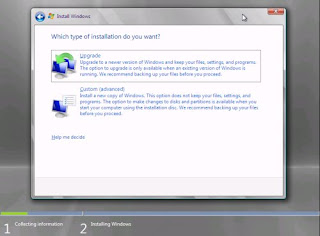
In-place upgrades of Windows server systems are very rare, but they do happen. This functionality is currently only applicable to systems running an x64 operating system; the upgrade will not function on x86 editions of Windows Server. This effectively means that the base release of Windows Server 2008 was the last server operating system with an x86 option.
The upgrade functionality option fits well in the IT landscape right now. For new Windows Server 2008 installations, be sure to select the x64 edition during your initial build, so the migration to R2 will be rather seamless when it comes out. Many general purpose servers that are on x86 editions are not offered a native upgrade option.
Source: zdnetasia
Among the Windows Server 2008 R2 beta's functionality improvements on Windows Server 2008 is that the upgrade functionality is now available.
For most upgrade scenarios, the process would occur in a currently running version of Windows. The upgrade option is shown in Figure A.

In-place upgrades of Windows server systems are very rare, but they do happen. This functionality is currently only applicable to systems running an x64 operating system; the upgrade will not function on x86 editions of Windows Server. This effectively means that the base release of Windows Server 2008 was the last server operating system with an x86 option.
The upgrade functionality option fits well in the IT landscape right now. For new Windows Server 2008 installations, be sure to select the x64 edition during your initial build, so the migration to R2 will be rather seamless when it comes out. Many general purpose servers that are on x86 editions are not offered a native upgrade option.
Source: zdnetasia
Subscribe to:
Posts (Atom)


